
MacBook Won’t Turn On? Do These 5 Things First
Before spending a cent on repairs — try these free diagnostic steps. 40% of MacBooks that arrive at our workshop “not turning on” are fixed without any parts replacement.
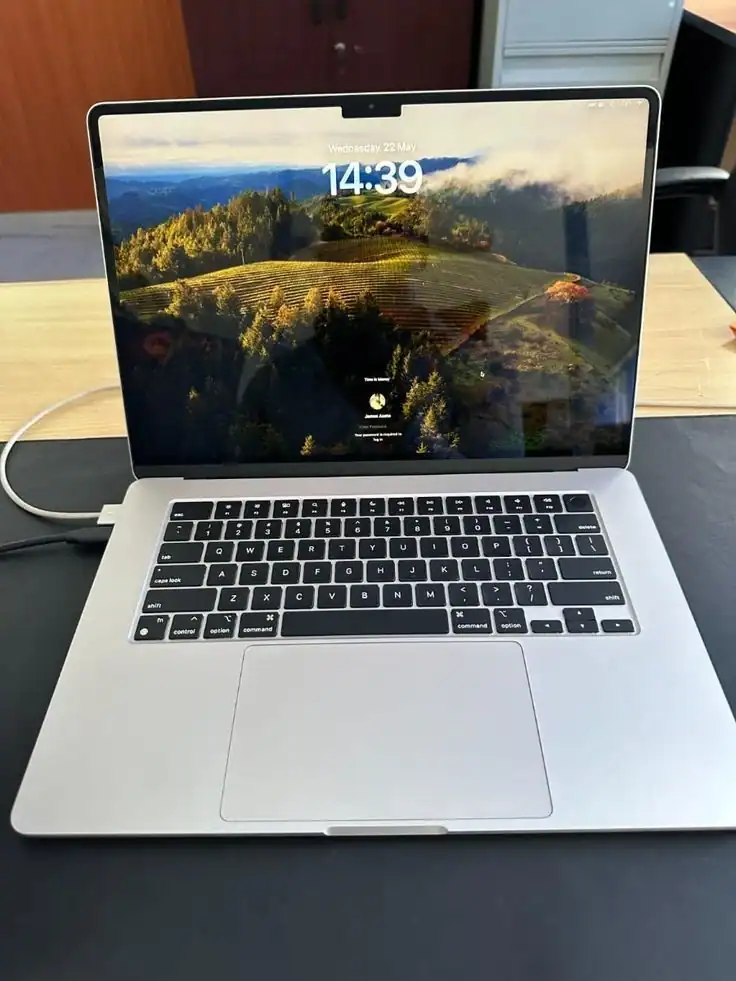
A MacBook that won’t turn on is not automatically a dead MacBook. In our Johannesburg workshop, roughly 40% of MacBooks brought in for “won’t power on” are fixed without any hardware repair at all — the fault is software, power management, or a simple reset that the owner didn’t know how to perform.
Work through these 5 steps in order before paying anyone for a diagnosis. If you complete all 5 and the MacBook still won’t turn on, then you have a hardware fault that needs professional repair — and we’ll tell you exactly what it costs.
🚨 Did your MacBook survive a liquid spill? Do not attempt to turn it on — skip all steps and go straight to Step 5. Turning on a water-damaged MacBook causes short circuits that turn a R1,800 repair into a R5,000+ logic board job.
The 5 Steps — Do These Before Paying Anyone
Check the Charger and Power — Completely
This sounds obvious but it’s the most common cause we see. Check all of the following before assuming the MacBook is dead:
- Plug the charger directly into the wall — not a surge protector or extension cord. Some extension cords have faulty earth connections that prevent MacBook charging.
- Try a different wall socket entirely.
- On MagSafe models — check the LED light. Amber = charging, Green = charged, No light = power problem.
- On USB-C models — try plugging into a different USB-C port (MacBook Pro 14/16 has multiple).
- Let it charge for 20 minutes before attempting to power on — a completely drained battery needs time before it can boot.
Hard Reset — Force Restart Your MacBook
A software crash can leave your MacBook appearing completely dead. A force restart clears this without affecting your files.
For MacBook with Touch ID (M1, M2, M3, M4 — all modern MacBooks):
Wait 5 seconds.
Press Power button once to restart.
For older Intel MacBook (2015–2020):
Hold for 10 seconds. Release. Wait 5 seconds. Press Power.
Reset the SMC (Intel MacBooks Only)
The SMC (System Management Controller) controls power management. A corrupted SMC can prevent the MacBook from powering on entirely. This is free, safe, and takes 60 seconds.
MacBook with non-removable battery (2017 onwards Intel):
2. Hold: Left Shift + Control + Option + Power simultaneously
3. Hold for 10 seconds
4. Release ALL keys
5. Press Power normally to start
Apple Silicon MacBooks (M1/M2/M3/M4):
No key combination needed.
Check if It’s On But Screen is Black
Your MacBook may actually be turning on — but the screen is black due to a display fault. Test this:
- Listen for the startup chime or fan spin when you press power
- Check for keyboard backlight — if it lights up, the MacBook is on but the screen is failing
- Shine a torch at the screen at an angle in a dark room — can you faintly see the desktop? That’s a backlight failure, not a power issue
- Connect an external monitor via HDMI or USB-C adapter — if you see your desktop on the external screen, the MacBook logic board is fine and only the screen needs repair
NVRAM/PRAM Reset (Intel MacBooks)
The NVRAM stores settings like display resolution, startup disk and volume — corruption here can prevent startup. This is safe and doesn’t affect your files.
Intel MacBook only (M-series handles this automatically):
2. Press Power, then immediately hold: Option + Command + P + R
3. Hold until you hear the startup chime twice (or see the Apple logo appear and disappear twice)
4. Release keys and let it boot normally
Still Not Turning On? — What the Hardware Fault Actually Is
If you’ve completed all 5 steps and the MacBook still won’t turn on, you have a hardware fault. Here’s what the different symptoms point to — and what repair costs in Johannesburg:
| What You Observe | Most Likely Cause | Fix | Cost JHB |
|---|---|---|---|
| No response at all — no light, no fan, no chime | Dead battery, failed charging circuit, or logic board power rail | Professional | From R1,200 |
| Charger light on but won’t boot — keyboard backlit | Failed SSD, corrupted macOS, or T2 chip issue | Professional | From R900 |
| Fans spin at full speed, no display | Failed RAM or GPU — macOS can’t initialise display | Urgent | From R2,500 |
| Powers on, gets to Apple logo, then shuts off | Failing SSD, corrupted macOS, or thermal shutdown | Professional | From R900 |
| Kernel panic screen on every startup | Corrupted macOS, failing RAM, or driver issue | Try DFU restore first | From R600 |
| Won’t turn on after liquid spill | Short circuit or corrosion on logic board | Urgent — bring in immediately | From R1,800 |
| Black screen — external monitor works fine | Display backlight or screen assembly failure | Professional | From R2,500 |
🔧 Free diagnostic at Fix My Gadget: Bring your dead MacBook to our Kibler Park workshop — we run a full hardware diagnostic at no charge. You’ll know exactly what’s wrong and exactly what it costs before committing to any repair. Pickup from Johannesburg available if you can’t drive in.
MacBook Won’t Turn On in Johannesburg — We Fix It
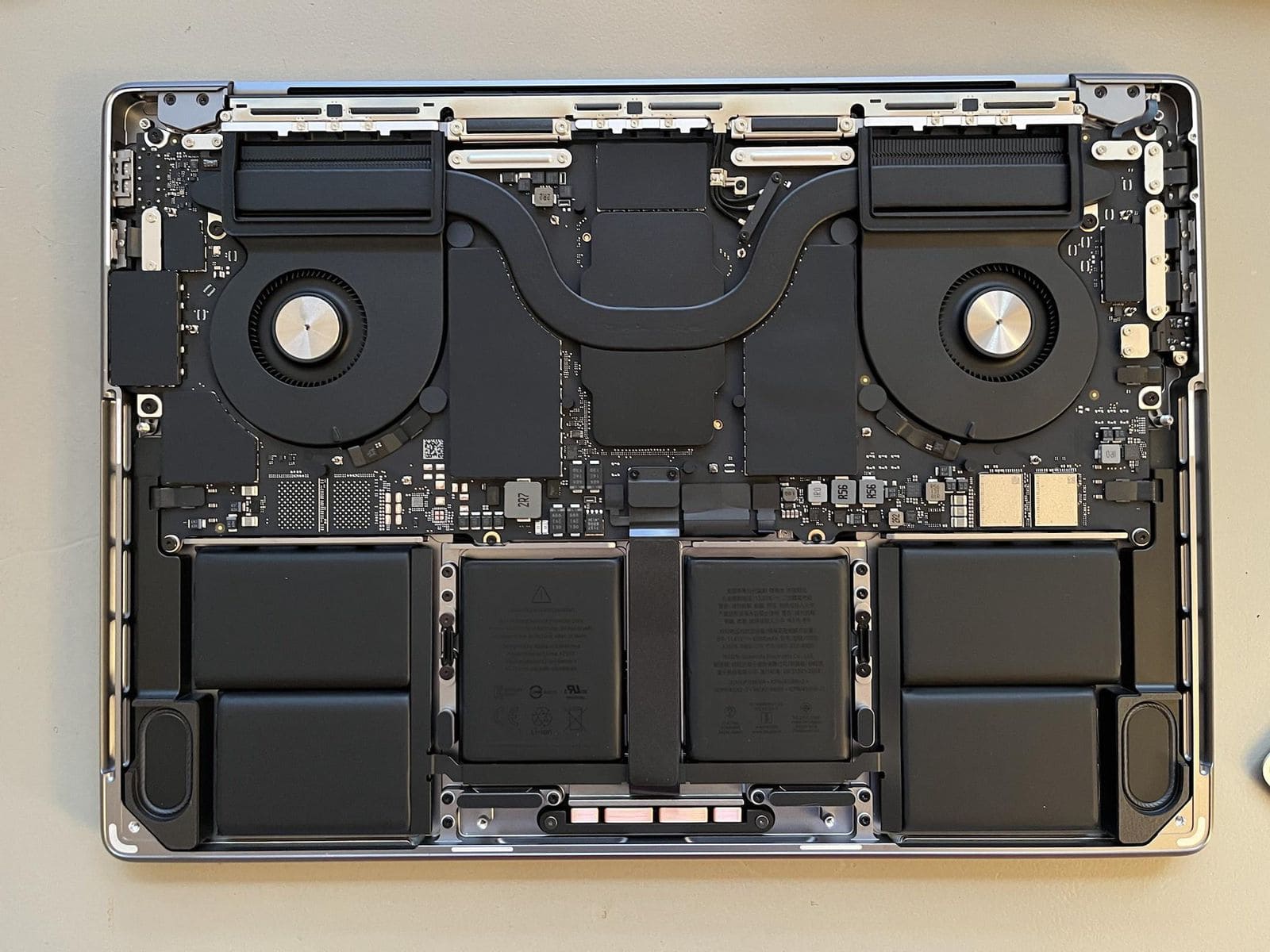
We’ve diagnosed and repaired hundreds of dead MacBooks at our Kibler Park workshop. From simple SMC resets to full logic board component-level repair — we identify the exact fault before quoting.
- Free diagnostic — no charge to tell you what’s wrong
- Written quote before any repair starts
- 3-month warranty on all repairs
- All MacBook models — Air and Pro, Intel to M4
- Pickup & delivery across Johannesburg
- 31 real Google reviews
✅ Data safety: We never format or erase your data without explicit written permission. Even on a MacBook that won’t boot, we recover data where possible before any repair.
What Our MacBook Customers Say
Real reviews — see all 31 Google reviews →
“My MacBook is good as new. Very happy with the service. He was quick. It took him just a few hours and I got it same day!!!”
“FixMyGadget responded swiftly when I contacted them to repair my MacBook. They were very professional and the repair was done to a high standard.”
“Efficient, trustworthy and fair priced. Collected my machine and kept me informed throughout the whole process.”
Frequently Asked Questions
MacBook Still Dead After All 5 Steps? We Fix It.
Free diagnostic, honest quote, 3-month warranty. Pickup & delivery across Johannesburg from our Kibler Park workshop.