iPhone won’t turn on Johannesburg · Johannesburg
iPhone Won’t Turn On Johannesburg Repair Guide
A practical guide for iPhones that won’t turn on: battery, charging port, screen, board fault, liquid damage and data protection.
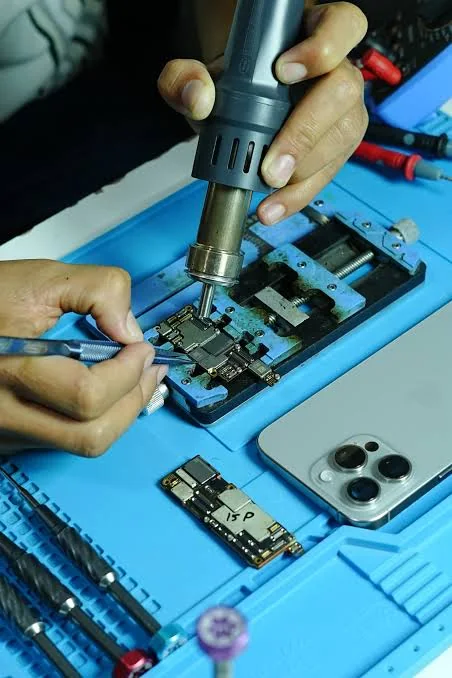
What this iPhone won’t turn on Johannesburg page is really for
This page is written for people in Johannesburg who are trying to make a practical decision about iPhone won’t turn on Johannesburg, not for people looking for empty marketing promises. The first question is always what failed, how the device is used, and whether the repair cost makes sense compared with replacement. That is why Fix My Gadget starts with the model number, the fault story and a real inspection instead of guessing from a single photo.
For device repairs, the right answer can change completely from one model to another. A basic office laptop, a gaming laptop, a MacBook Air, a MacBook Pro, an iPhone, a smart TV and a monitor do not fail in the same way. The part price, labour time, board risk and data risk are different. This page explains the decision path so the customer understands why a technician may recommend repair, replacement, backup, cleaning, board work or retirement.
The quick diagnostic framework
Before spending money on iPhone won’t turn on Johannesburg, start with the fault pattern. Did the problem happen suddenly after a drop or liquid spill? Did it appear slowly over weeks? Does the device still power on? Does it show an image externally? Does it charge? Does it overheat, restart, flicker or shut down under load? These questions separate cosmetic damage from structural, electrical and data-risk faults.
At Fix My Gadget, the diagnostic is not just to name a broken part. The inspection checks whether the repair will last. A screen fault caused by a bent lid, weak hinge or damaged display cable needs more than a panel swap. A battery problem caused by charging-port damage needs the charging circuit checked. A slow computer with a dying drive needs data protection before upgrades.
Cost factors and what changes the quote
The price for iPhone won’t turn on Johannesburg depends on part grade, model generation, availability, fault location and whether another damaged component is hidden underneath. Johannesburg customers often compare quotes by the final number only, but the cheapest quote can be expensive if it uses a weak part, skips the structural cause or ignores liquid residue.
Fix My Gadget quotes before repair. The R350 diagnostic is waived when the approved repair proceeds. Pickup and delivery is available as a paid service quoted upfront, so the customer knows the repair route before committing.
| Situation | What it usually means | Best next step |
|---|---|---|
| Fault appears after a drop, spill or surge | Hardware inspection is more important than software guessing. | Stop forcing the device and send photos before bringing it in. |
| Device works but has warning signs | The fault may still be repairable before it spreads. | Back up important data and book a diagnostic. |
| Repair cost is close to replacement cost | A repair may not be the smartest use of money. | Ask for a repair-or-replace opinion before spending. |
When repair is smarter than replacement
Repair is usually smarter when the device is still valuable, the data matters, the fault is isolated and the repair cost is well below the cost of buying a reliable replacement. This is common with screen repairs, battery replacements, SSD upgrades, keyboard replacements, hinge repairs and some power faults.
Replacement is worth considering when the device is too old for the customer’s workload, the repair cost is close to the value of the unit, parts are poor quality or the board damage is widespread. In those cases we still help customers make a clean decision rather than forcing a repair that does not make sense.
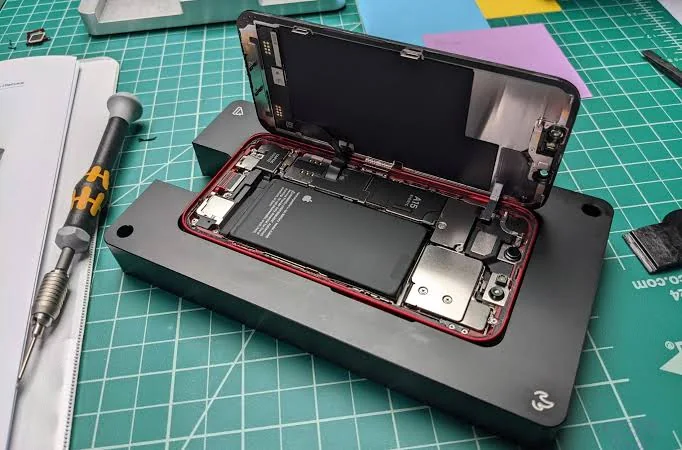
How this page fits into the Fix My Gadget repair system
This page links into the wider Fix My Gadget repair service area so Google and customers both understand the relationship between iPhone won’t turn on Johannesburg and the surrounding services. If the fault is actually a screen, battery, hinge, charging, board, cooling or data problem, the related pages below help guide the customer to the correct service page.
The goal is not to scatter duplicate pages across the website. The goal is to make every page answer a different Customer need clearly, then link back to the strongest Important repair pages with natural anchor text. That is how a static website can still build authority without WordPress plugins.
Questions customers ask
iPhone won’t turn on Johannesburg FAQs
Can Fix My Gadget help with iPhone won’t turn on Johannesburg?
Yes. Fix My Gadget can inspect the device, explain the fault, quote before repair and advise if repair or replacement makes better sense.
Is the diagnostic free?
The diagnostic is R350 and is waived when the approved repair proceeds.
Do you offer pickup and delivery?
Pickup and delivery is available as a paid service quoted upfront.
Can you quote from photos only?
Photos help us guide the likely next step, but a final quote depends on inspection and part availability.
What should I send first?
Send the model number, clear photos of the fault, your suburb and a short description of what happened.
Helpful references
Useful outside resources
These links support the advice on this page without replacing a proper device inspection.
Related repair paths
Useful related repair guides
Helpful repair guidance
What to understand before choosing iphone won’t turn on johannesburg repair guide
Many iPhone problems feel urgent because the phone carries banking apps, school messages, work calls, photos and daily communication. A cracked screen, weak battery, charging issue or water exposure can look like a small problem at first, but it can become worse if the device keeps being charged, dropped or used while parts are loose.
Before repair, the safest step is to separate the symptom from the cause. A battery warning may point to battery wear, but sudden shutdowns can also involve charging circuits or board-level faults. A cracked screen may still respond to touch today but can fail later if the OLED/LCD or flex is damaged.
At Fix My Gadget, the practical approach is simple: identify the real fault, explain the options, quote before repair, and only proceed after approval. The diagnostic fee is R350 and is waived when the approved repair proceeds. Pickup and delivery is available as a paid service quoted upfront.
Safe first checks
What you can check without making the fault worse
These checks are safe for most customers. Do not open the device, force connectors, keep charging after liquid exposure, or continue using a machine that is overheating, swelling, sparking or smelling burnt.
- Write down the exact symptomWhen did it start, does it happen every time, and did the device fall, get wet, overheat or receive a power surge?
- Confirm the model numberRepair quotes depend heavily on model, screen type, battery type, board generation and part availability.
- Protect your dataIf the device still starts, back up important files before repair. If it does not start, avoid repeated power attempts that can make recovery harder.
- Stop using unsafe devicesIf the battery is swollen, the screen is lifting, liquid entered the device or the laptop gets extremely hot, stop using it and ask for advice.
Repair decision table
How we decide the right repair path
| What we check | Why it matters | Possible next step |
|---|---|---|
| Visible damage | Cracks, liquid marks, broken hinges or loose ports can point to the fault area. | Part replacement, cleaning, structural repair or board inspection. |
| Power and charging behaviour | No power, random shutdowns or charging only at an angle can involve more than one component. | Battery, charger, port, power circuit or motherboard diagnosis. |
| Display and performance symptoms | Lines, flicker, freezing and slow startup can come from screen, storage, RAM, heat or board faults. | Screen test, external display test, SSD/RAM test or cooling service. |
| Repair economics | Some repairs are excellent value; others may not make sense on an old or badly damaged device. | Repair, upgrade, data recovery, replacement advice or recycling. |
Related help
Next pages that may help you
Use these guides to move from the symptom you see to the repair or buying decision that matches your device.
Book the inspection
Need help with iPhone won’t turn on Johannesburg?
Send the model number, a photo of the fault and your suburb. We will advise the next step and quote pickup if needed.
Content quality promise
Written to help before it sells.
Fix My Gadget repair guides are written from real workshop patterns: cracked screens, failed batteries, liquid damage, no-power faults, slow laptops, data risk and replacement decisions. The goal is to help you understand the likely repair path before you spend money.
We avoid pretending that every device can be diagnosed online. When a fault needs testing, we say so clearly and invite you to send the model, photos and symptoms before booking.
- We explain symptoms, risks and safe checks in plain language.
- We separate repair advice from product-shopping advice.
- We quote after inspection and do not recommend unnecessary parts.
- We keep Johannesburg location, pickup and diagnostic information visible.
Visit or arrange pickup
Fix My Gadget is based in Kibler Park, Johannesburg South
Workshop drop-off is available by arrangement, and paid pickup/delivery can be quoted upfront for Johannesburg areas. Send your device model, photos of the fault and your area on WhatsApp before coming through.