

MacBook Won’t Turn On But Charging Light Is On?
The familiar green or amber light glows on your MagSafe charger, giving you hope. Yet, your screen remains pitch black. Here is exactly what this means and how to fix this frustrating MacBook power issue in Johannesburg.
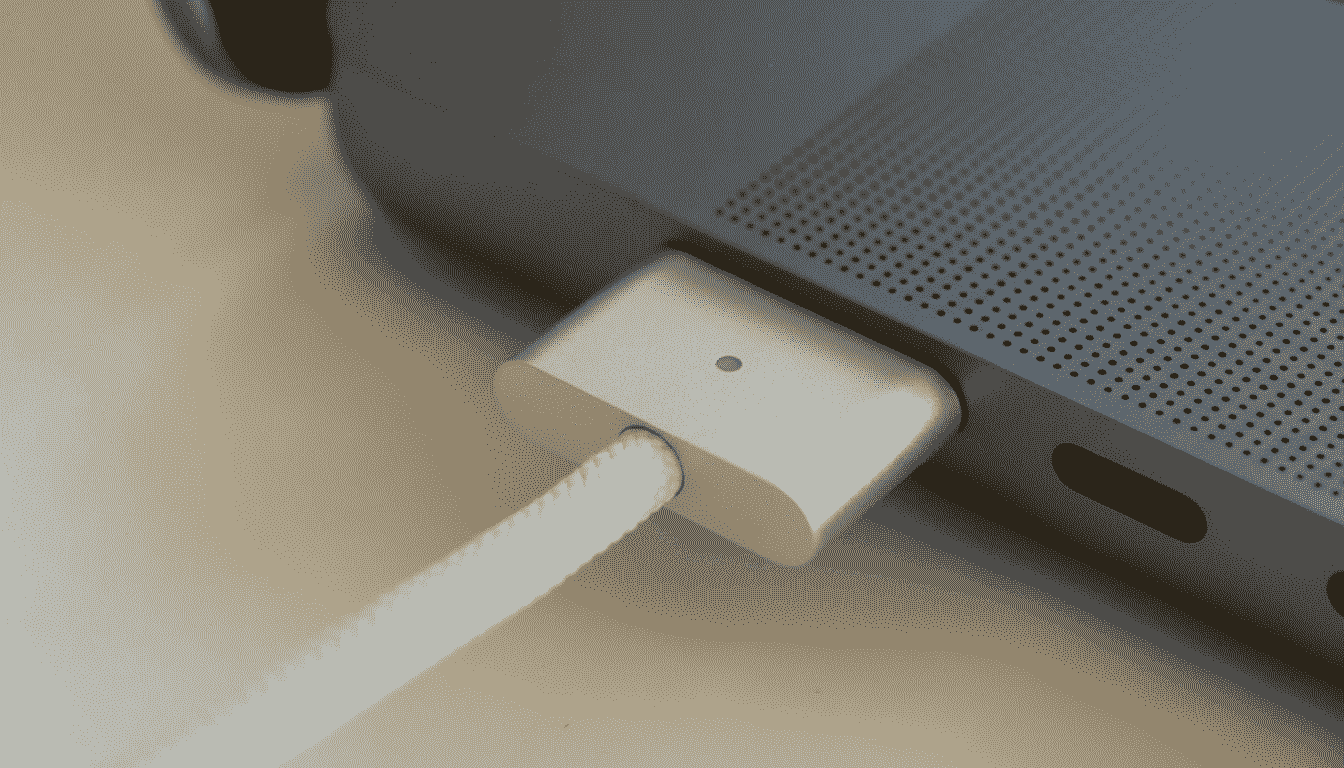
You sit down at your desk, ready to tackle the day’s work. You plug in your charger, and a wave of relief washes over you as the familiar green or amber light illuminates on the MagSafe connector. It is getting power! But then, you press the power button, and your heart sinks. The screen remains completely black. There is no startup chime, the fans do not spin, and the keyboard stays dark.
It is a terrifying moment. You immediately start wondering if your critical documents, family photos, or heavy project files are lost forever. If you are frantically searching because your MacBook won’t turn on but charging light is on, you are experiencing one of the most common—and misunderstood—hardware phenomena in the Apple ecosystem.
Many users assume that because the charger light is glowing, the battery is full and the computer should boot perfectly. Unfortunately, laptop circuitry is much more complex than a simple light switch. In this comprehensive Johannesburg repair guide, we are going to break down exactly what your Mac is trying to tell you, the hidden causes behind this issue, and the practical steps you can take right now to get your machine back up and running.
Before We Dive Deep…
If you are in a panic and just want immediate, actionable steps to force your MacBook to boot, we highly recommend reading our core troubleshooting masterclass first.
Read: 5 Professional Steps to Fix a Dead MacBook Before You Spend a CentWhat This Problem Actually Means
To understand why a MacBook not turning on can simultaneously display a charging light, we need to look at how Apple designs its power delivery system. It is not a direct line of electricity from the wall to your processor.
When you connect a MagSafe charger to your MacBook, a microscopic conversation happens. Inside the tip of your charger is a tiny microchip. Inside your Mac is a corresponding circuit (often called the 1-wire circuit or the SMC). Before any actual power is allowed to flow into the battery or motherboard, these two chips shake hands.
The charger says, “I am an authentic Apple 60W charger. Are you safe to receive power?” If the System Management Controller (SMC) inside your Mac agrees, it sends a signal back saying, “Yes, send power, and turn your LED green.”
Here is the critical takeaway: The light on your charger only means that the initial “handshake” circuit is working and the charger is providing voltage to the primary power rail. It does not mean that the CPU, the RAM, or the display is receiving the power they need to turn on. The electricity is knocking on the front door, but the internal systems are refusing to let it inside.
Common Causes of This MacBook Power Issue
Now that we know electricity is reaching the port, why is the rest of the computer dead? Whether a MacBook Pro won’t turn on or a MacBook Air won’t turn on, the culprits usually fall into one of these distinct categories:
1. The SMC is Frozen in a Safety Lock
The System Management Controller (SMC) manages battery behavior, thermal management, and power button responses. Sometimes, due to static electricity, a sudden power surge, or a software kernel panic, the SMC freezes. When it freezes, it locks the power rails to protect the logic board. It will happily keep the charger light on, but it will completely ignore you pressing the power button.
2. The “Fake Dead” Scenario (Display Backlight Failure)
This is incredibly common. Your MacBook might actually be turning on, but you simply cannot see it. If the delicate flex cable connecting your motherboard to your screen wears out (a known issue in certain MacBook Pro models), the LED backlight will fail. The computer boots up, processes data, and charges normally, but the screen stays pitch black.
3. Liquid Damage Corrosion
Even if you spilled coffee on your keyboard six months ago and thought you got away with it, liquid damage is a ticking time bomb. Minerals left behind from liquids cause galvanic corrosion. Over time, this microscopic green rust eats away at tiny resistors on the logic board. The circuit that turns the charging light on might be perfectly clean, while the circuit responsible for waking up the CPU has been eaten away entirely.
4. Total Battery Failure or Deep Discharge
If a MacBook battery is extremely old or has been left uncharged in a cupboard for months, it falls into a state of deep discharge. For safety reasons, lithium-ion battery controllers will permanently sever the connection to prevent the battery from swelling or catching fire. Even with the charger plugged in, a completely dead battery cell can interrupt the power flow required for the logic board to boot.
Step-by-Step Fix: What You Can Do Right Now
Before you rush out to a repair center, there are several safe, non-invasive steps you can take at home to try and revive your machine.
-
1Perform the “Power Drain” Hard Reset
Disconnect all peripherals (USB hubs, external hard drives, monitors). Unplug the charger. Press and hold the power button down firmly for a full 10 to 15 seconds. This drains residual static electricity from the capacitors. Release the button, plug the charger back in, and try turning it on normally.
-
2Reset the SMC (Intel MacBooks)
If you have an older Intel-based MacBook, resetting the SMC is the golden fix. Plug in your charger. On the built-in keyboard, press and hold Shift + Control + Option on the left side, then press the Power Button at the same time. Hold all four keys for 10 seconds, then release them all simultaneously. Watch the charger light; it may briefly blink or change color. Now press the power button to turn it on.
-
3The External Monitor Test
To rule out the “Fake Dead” display failure, connect your MacBook to an external monitor or TV using an HDMI cable. Turn the computer on and close the lid (clamshell mode). If your desktop appears on the TV, your logic board is fine, but your Mac’s internal screen has failed.
For a much more detailed walkthrough of these reset combinations, including how to handle Apple Silicon (M1/M2) machines, refer to our comprehensive guide on fixing a MacBook that won’t turn on.
When You Need Professional Help
If you have attempted the SMC reset, tried different wall outlets, and verified that your screen isn’t just dim, and the MacBook still remains unresponsive despite the glowing charger light, you have reached the limit of software troubleshooting.
At this stage, you are dealing with a hardware-level failure on the motherboard (Logic Board). This requires a technician who can read electrical schematics, use a multimeter to track voltage drops across microscopic power rails, and utilize micro-soldering tools to replace blown capacitors or integrated circuits.
Do not attempt to open the chassis and poke around with screwdrivers; modern logic boards are incredibly sensitive to static discharge, and a slip of the hand can turn a repairable motherboard into permanent electronic waste.
Why Choose Fix My Gadget in Johannesburg?
Finding a reliable laptop repair service in Johannesburg that actually understands component-level Apple repair is difficult. Many standard IT shops will take one look at a dead MacBook and instantly declare, “You need a new motherboard.” This is incredibly expensive and often results in total data loss.
At Fix My Gadget, we operate differently. We don’t just replace boards; we fix them.
- Micro-Soldering Experts: We track down the exact 3-millimeter microchip causing your power issue and replace just that part, saving you thousands of Rands.
- Data Preservation: Because we repair your original logic board rather than replacing it, your encrypted data and irreplaceable files stay exactly where you left them.
- Transparent Diagnostics: We provide clear, jargon-free explanations of what went wrong before any repair work begins.
Frequently Asked Questions
Why won’t my MacBook turn on but shows charging?
The charging light only indicates that the charger is authentic and the initial power management chip is receiving voltage. It does not mean power is successfully passing through the logic board to the CPU, memory, or display. This usually points to a frozen SMC, a blown power rail, or liquid damage.
Can a dead battery cause this issue?
Yes. If a battery has degraded significantly, swollen, or fallen into a state of “deep discharge,” its internal safety controller will lock it out. In some MacBook models, a completely failed battery can interrupt the boot sequence, causing the computer to remain off even when plugged into the wall.
Is it motherboard (logic board) related?
If you have tried an SMC reset and verified the screen isn’t just broken (via an external monitor), then yes, the issue is almost certainly logic board related. It usually involves a short circuit on a primary power line (like PPBUS_G3H) preventing the system from waking up.
What is the repair cost in South Africa?
Repair costs vary widely depending on the model and the exact component that failed. A simple firmware revival might be inexpensive, while component-level logic board repairs or screen replacements will be higher. However, professional micro-soldering is almost always significantly cheaper than buying a brand new Logic Board from Apple. Contact us for a precise quote based on your model.
Don’t Give Up on Your Mac Just Yet.
Whether it’s a simple battery issue or complex logic board corrosion, our experts in Johannesburg have the tools and experience to bring your dead MacBook back to life. Secure your data and save your money.