
iPhone Won’t Turn On? Do These 6 Things First
A black, unresponsive iPhone is alarming — but in many cases it isn’t dead. Before you panic or pay for a replacement, work through these six steps in order. They resolve the majority of “iPhone won’t turn on” situations we see, and they tell you clearly when it’s time for professional repair.
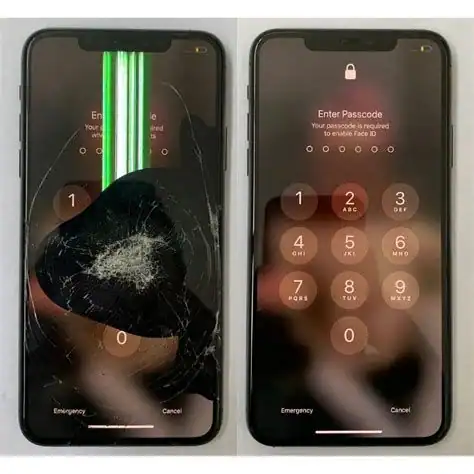
An iPhone that “won’t turn on” can mean several very different things: a completely flat battery, a frozen system that needs a restart, a working phone with a failed screen, or a genuine hardware fault. The fix is different for each — so the first job is to work out which one you’re dealing with.
When a customer brings us an iPhone that “won’t turn on,” the actual problem is genuinely dead only a fraction of the time. Far more often it’s one of three things: the battery is completely drained and needs longer on the charger than expected, the system has frozen and needs a force restart, or the phone is running perfectly but the screen has failed so it only looks dead.
The steps below are arranged in the order our technicians would work through them — from the simplest, most common fixes to the ones that point toward a hardware repair. Work through them in sequence. Most people find their phone comes back to life somewhere in the first three steps. If you reach the end and the phone is still unresponsive, you’ll know exactly what to tell a repair technician, which makes the diagnosis and quote faster.
📱 Quick orientation: These steps apply to all recent iPhone models — iPhone 8 through iPhone 16 and the SE range. Where the method differs between models (particularly the force restart and recovery steps), we’ve listed the exact button sequence for each. Work through in order; don’t skip ahead.
Step 1: Charge It — and Give It Real Time
Plug in and wait at least 30 minutes before judging
This sounds obvious, but it’s the single most common cause we see — and the one people dismiss too quickly. A deeply discharged iPhone battery (fully flat, possibly sitting flat for days) can take 15–30 minutes on the charger before it shows any sign of life at all. During this period the screen stays completely black, with no charging icon — which understandably convinces people the phone is dead.
What to do:
- Connect the iPhone to a known-working wall charger — not a laptop USB port or car charger, which deliver less power.
- Use a cable you know works. A damaged cable is one of the most common reasons a “dead” phone won’t charge.
- Leave it connected and undisturbed for at least 30 minutes — ideally an hour.
- After 30 minutes, look for the charging screen or try to power it on.
⚠️ If after 60 minutes on a known-good charger there is still no charging icon, no Apple logo, and no warmth from the phone — the issue is more than a flat battery. Move to Step 2.
Step 2: Force Restart the iPhone
The single most effective fix for a frozen iPhone
If the iPhone’s software has crashed or frozen, the screen will be black and unresponsive even though the phone has power. A force restart reboots the device without erasing any data — and it resolves a very large share of “won’t turn on” cases. The button sequence differs by model, so use the correct one below.
📱 iPhone 8, X, 11, 12, 13, 14, 15, 16 and SE (2nd/3rd gen)
Press and quickly release Volume Up. Press and quickly release Volume Down. Then press and hold the Side button until the Apple logo appears — this can take up to 20 seconds. Keep holding even after the screen flashes.
📱 iPhone 7 and 7 Plus
Press and hold the Volume Down button and the Side button at the same time. Keep holding both until the Apple logo appears.
📱 iPhone 6s, SE (1st gen) and earlier
Press and hold the Home button and the Side (or Top) button together until the Apple logo appears.
For the force restart to work, the phone needs some charge — so if Step 1 didn’t show a charging icon, leave it charging while you attempt the force restart. If the Apple logo appears, the phone is recovering. Let it complete its boot sequence fully before using it.
Step 3: Work Out If It’s the Screen or the Phone
A working iPhone with a dead screen looks identical to a dead iPhone
This is the diagnosis people miss most often. If the iPhone’s display has failed — from a drop, a crack, an internal cable that has come loose, or a screen component failure — the phone can be fully powered on and working while the screen shows nothing. It looks completely dead, but it isn’t.
How to test whether the phone is actually running:
- Listen and feel: After a force restart attempt, does the phone vibrate, make a sound, or feel warm? Any of these means it has power and is running.
- Call it: From another phone, call your iPhone’s number. If it rings or goes to voicemail, the phone is alive — the screen is the problem.
- Connect to a computer: Plug it into a computer with iTunes or Finder. If the computer detects the iPhone, it’s powered on and functioning — confirming a display fault.
- Check for sounds: If you can hear notification sounds or the ringer but see nothing — that’s a clear screen failure, not a dead phone.
💡 If any of these tests show the phone is alive but the screen is black or unresponsive, the issue is the display — not the phone itself. This is a very common and repairable fault. See our iPhone screen replacement service for what’s involved.
Step 4: Rule Out the Charging Accessories
Sometimes the phone is fine — the charger, cable or port is the culprit
If the phone won’t charge and won’t power on, the problem may not be in the phone at all. Before assuming a hardware fault, systematically eliminate each accessory:
- Try a different cable. Lightning and USB-C cables fail internally far more often than people expect — especially after months of bending near the connector. A frayed or internally broken cable is a leading cause of “won’t charge.”
- Try a different wall adapter. Adapters fail too. Swap to one you know works.
- Try a different wall socket. Rule out a tripped socket — relevant in South Africa where load-shedding and power fluctuations are common.
- Inspect the charging port. Shine a light into the iPhone’s charging port. Lint, dust and pocket debris compact into the port over time and physically block the connector from seating. This is extremely common and easily missed.
⚠️ Cleaning the port: If you see debris, you can gently remove it with a wooden or plastic toothpick — never metal, which can short the contacts or cause damage. Power the phone off first. If the port is damaged or the connector feels loose even when clean, that’s a charging port repair.
Step 5: Try Recovery Mode
For an iPhone stuck on the Apple logo or boot loop
If your iPhone shows the Apple logo but won’t progress past it — or keeps restarting in a loop — the operating system may be corrupted. Recovery mode lets a computer reinstall iOS without necessarily erasing your data (though a backup is always recommended first).
To enter recovery mode:
- Connect the iPhone to a computer with iTunes (Windows / older Mac) or Finder (newer Mac).
- Perform the force restart button sequence for your model (from Step 2) — but keep holding the final button past the Apple logo until you see the recovery mode screen (a computer/cable icon).
- On the computer, choose Update (not Restore) first — this attempts to reinstall iOS without erasing data.
- If Update fails and the phone is still stuck, Restore is the next option — but this erases the phone, so only proceed if you have a backup or accept the data loss.
🚨 Important: Choose “Update” before “Restore.” Restore erases all data on the iPhone. If your data isn’t backed up and is important to you, stop here and bring the phone to a professional — attempting a restore without a backup permanently deletes photos, messages and everything else.

Step 6: Check for Liquid or Impact Damage
If none of the above worked, the cause is likely physical
If you’ve worked through all five previous steps and the iPhone is still unresponsive, the cause is most likely physical damage to internal components — and this is where DIY ends and professional diagnosis begins. Two causes dominate:
Liquid damage. Even a small amount of liquid — rain, a spilled drink, humidity, a drop in water — can cause corrosion on the logic board that prevents the phone from powering on. The damage is often not immediate; a phone can work for days after exposure, then fail. If your iPhone has had any liquid contact recently, do not keep trying to charge it, as this can worsen corrosion. Liquid damage requires professional cleaning and component-level work. Our iPhone water damage repair guide explains the process.
Impact damage. A hard drop can dislodge internal connectors, crack the logic board, or damage the battery. Sometimes the phone works fine after a drop; sometimes it fails immediately or days later. Internal connector and board-level issues need to be opened and assessed by a technician.
💡 A battery that has reached the end of its life can also prevent an iPhone from powering on — it may no longer hold enough charge to boot. If your iPhone was showing rapid battery drain or unexpected shutdowns before it stopped turning on, a failing battery is a likely cause. See our iPhone battery replacement service.
Quick Diagnosis: What Your Symptoms Point To
Use this table to narrow down the likely cause based on exactly what your iPhone is — and isn’t — doing.
When Your iPhone Needs a Professional
Work through all six steps before deciding on repair — but if you reach any of the situations below, professional diagnosis is the sensible next move rather than continued DIY attempts that could make things worse.
Any Liquid Exposure
Corrosion worsens over time and with repeated charging attempts. The sooner a liquid-exposed phone is professionally cleaned, the better the recovery odds.
Phone Runs But Screen Is Dead
If you’ve confirmed the phone is alive (rings, vibrates, detected by computer) but the screen shows nothing, it’s a display fault needing replacement.
Charging Port Won’t Hold a Cable
If the cable feels loose or won’t seat even after cleaning the port, the charging port assembly likely needs repair.
Battery Failure Symptoms
Rapid drain, unexpected shutdowns, or swelling before the phone died all point to a battery at end of life that needs replacing.
Phone Gets Hot But Won’t Boot
Heat with no boot can indicate a logic board fault — a component-level issue requiring professional micro-soldering diagnosis.
Stuck in a Boot Loop After Restore
If recovery mode and a restore didn’t fix the loop, the issue is hardware rather than software — professional assessment needed.
At Fix My Gadget, iPhone diagnostics are free when you proceed with the repair — We assess the device and tell you exactly what’s wrong and what the repair costs before you commit to anything. We cover all iPhone repairs across Johannesburg from our Kibler Park workshop, with pickup and delivery available. See our full iPhone repair service in Johannesburg for the complete range.
iPhone Still Won’t Turn On?
Bring it to Fix My Gadget for a Diagnosis. We’ll tell you exactly what’s wrong and what it costs to fix — no obligation, 3-month warranty on most part replacements (screen, battery, keyboard and similar).