

PC Freezing? A Comprehensive Guide to Fixing a Frozen Computer
Don’t let a frozen screen ruin your day. Find out why it happens and how to fix it for good.
A frozen computer can bring your productivity to a halt. This guide provides step-by-step instructions to diagnose and fix freezing issues on your PC or laptop, whether it’s a software glitch or a hardware problem.
PC Freezing? A Comprehensive Guide to Fixing a Frozen Computer
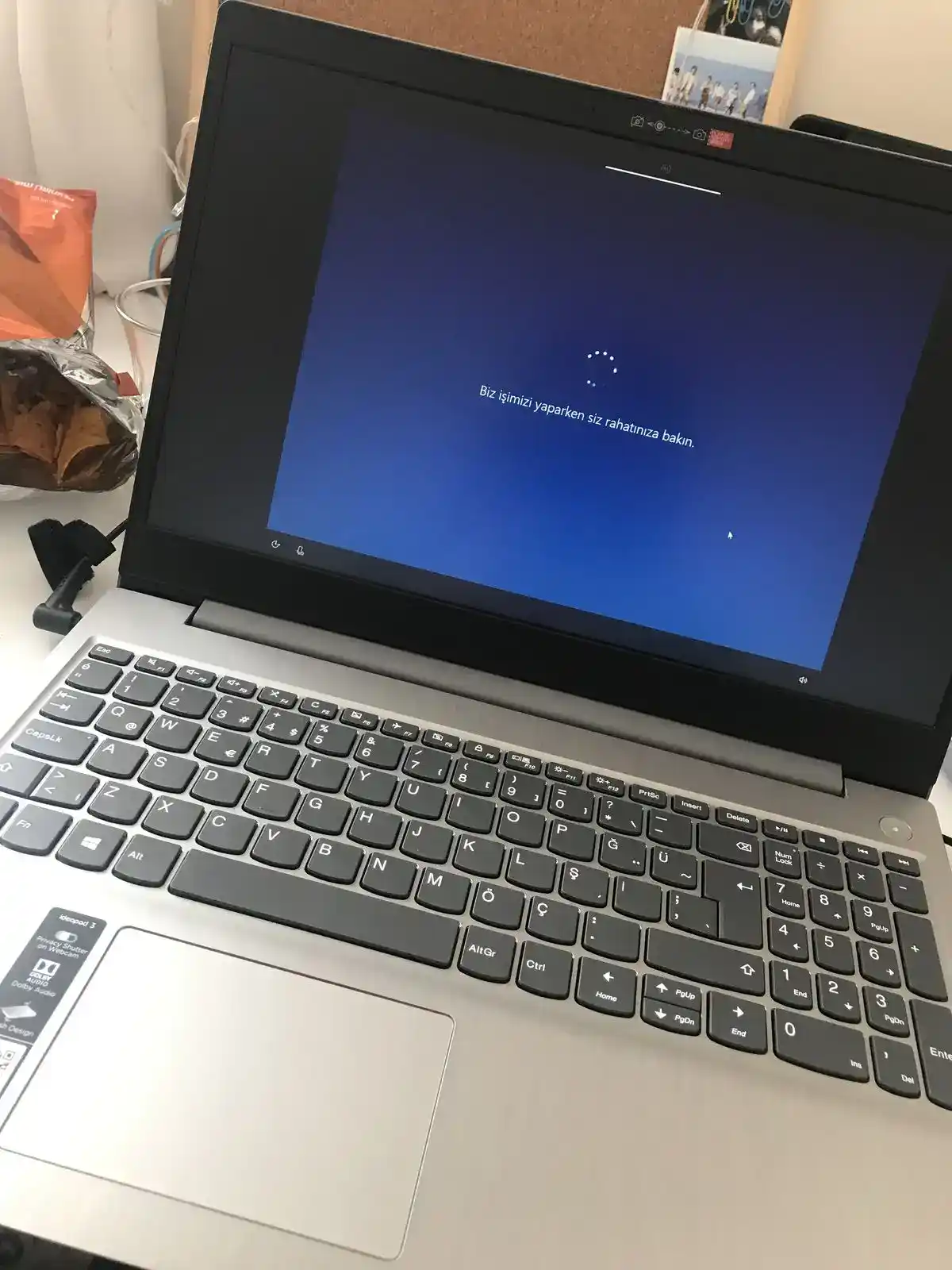
A computer that randomly freezes is one of the most disruptive tech problems. This guide will help you diagnose the root cause—from software glitches to hardware failures—and provide clear, actionable steps to resolve the issue and prevent it from happening again.
There’s nothing more frustrating than being in the middle of an important task when your computer suddenly becomes unresponsive. The mouse won’t move, the keyboard does nothing, and the screen is stuck. This guide is here to help you troubleshoot and fix the problem, whether you need a quick solution or a more permanent fix.
Table of Contents
- 1. Immediate Steps for a Frozen Computer
- 2. Identify the Cause: Software or Hardware?
- 3. Solution 1: Resolve Software Issues
- 4. Solution 2: Scan for Malware
- 5. Solution 3: Update Drivers and OS
- 6. Solution 4: Check for Overheating
- 7. Solution 5: Test Your Hardware
- When to Seek Professional Laptop Repairs
1. Immediate Steps for a Frozen Computer
When your computer is completely frozen, here’s what to do right now to get it working again.
Sometimes, the system is just trying to process a demanding task. Give it a minute or two to see if it becomes responsive again.
Press Ctrl + Alt + Delete (or Cmd + Option + Esc on Mac) to open the Task Manager or Force Quit menu. If a specific application is listed as “Not Responding,” select it and end the task.
If nothing else works, press and hold the physical power button for 5-10 seconds until the computer shuts down. Wait a few seconds, then turn it back on. Be aware that you may lose any unsaved work.
2. Identify the Cause: Software or Hardware?
Once your computer is running again, the next step is to figure out why it froze. Freezing issues typically fall into two categories: software or hardware problems.
Common Causes of PC Freezing
3. Solution 1: Resolve Software Issues
Software conflicts are a leading cause of computer freezes. This can include buggy programs, outdated software, or too many applications running at once.
- Uninstall Unnecessary Software: Remove programs you no longer use, especially browser toolbars or “PC optimizer” apps.
- Update Your Software: Ensure your web browser, office suite, and other frequently used applications are updated to the latest version.
- Run System File Checker (SFC): This tool can find and repair corrupted system files on Windows.
# To run System File Checker on Windows, open Command Prompt as an Administrator and type:
sfc /scannow
4. Solution 2: Scan for Malware
Malware, such as viruses and spyware, can consume system resources and cause your computer to freeze. Running a full system scan with a reputable antivirus program is essential.
On Windows, run a full scan with Windows Security. On Mac, while less common, it’s still wise to use a tool like Malwarebytes for Mac to check for adware and other threats.
Consider using a secondary, on-demand scanner like Malwarebytes or ESET Online Scanner to catch anything your primary antivirus might have missed.
5. Solution 3: Update Drivers and OS
Outdated or corrupt drivers are a very common cause of freezing, especially graphics card (GPU) drivers. Likewise, an outdated operating system can have unpatched bugs.
Go to Settings > Update & Security > Windows Update (or System Preferences > Software Update on Mac) and install all available updates.
For your graphics driver, visit the NVIDIA, AMD, or Intel website directly to download the latest version. For other components, you can check the computer manufacturer’s website (e.g., Dell, HP) or use the Device Manager in Windows.
6. Solution 4: Check for Overheating
When components like the CPU or GPU get too hot, they automatically slow down or shut off to prevent damage, which can cause your system to freeze.
- Clean Your Computer: Dust is a major enemy of cooling. Use compressed air to clean out dust from vents, fans, and heatsinks.
- Ensure Proper Airflow: Make sure your computer (especially a laptop) has space to breathe. Don’t use it on a soft surface like a bed or couch.
- Monitor Temperatures: Use free tools like HWMonitor or Core Temp to check your component temperatures. A CPU running over 85-90°C under load may be overheating.
For older computers (3+ years), the thermal paste that transfers heat from the CPU to its cooler may have dried out. Replacing it can significantly improve temperatures and stability. This is a common computer repair service we offer.
7. Solution 5: Test Your Hardware
If software and heat aren’t the issue, you may have a failing hardware component. The most common culprits are RAM and your storage drive.
| Hardware Component | How to Test | Symptoms of Failure |
|---|---|---|
| RAM (Memory) | Use the built-in Windows Memory Diagnostic tool or MemTest86. | Random freezes, blue screens of death (BSOD), failure to boot. |
| Hard Drive / SSD | Use CrystalDiskInfo to check S.M.A.R.T. status or run `chkdsk` in Windows. | Very slow performance, clicking noises (HDD), freezes during file access. |
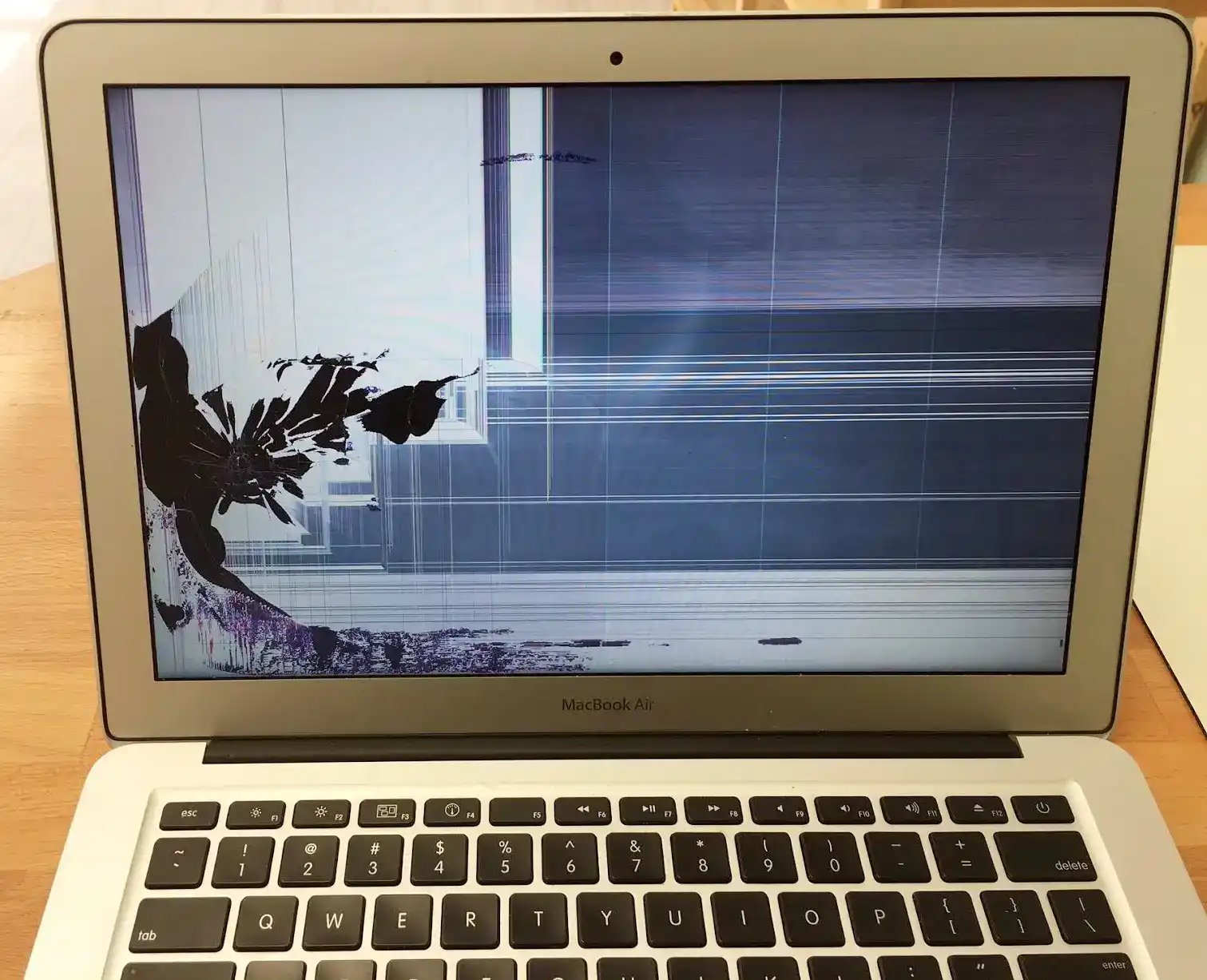
Running these tests can help you pinpoint if a hardware component needs to be replaced. Hardware replacement, such as a Macbook screen repair or a laptop hard drive upgrade, is best left to professionals if you are not comfortable doing it yourself.
When to Seek Professional Laptop Repairs
While you can solve many freezing issues at home, it’s time to call an expert if:
- You’ve tried all the steps above and the freezing persists.
- You suspect a hardware failure but aren’t comfortable opening your computer.
- Your computer won’t turn on at all after a freeze.
- The issue seems to be related to the motherboard or power supply.
At Fix My Gadget, our technicians in Johannesburg and across South Africa have the tools and expertise to diagnose complex hardware issues quickly. From simple computer repair to advanced laptop repairs, we can get your device running smoothly again.
Conclusion
A frozen computer is a sign that something is wrong. By systematically working through these troubleshooting steps, you can identify and fix the root cause. Start with simple software checks, move on to ensuring proper cooling, and finally, test your hardware. Regular maintenance is key to preventing future freezes.
If you need expert help with your computer or are looking for the best laptop under R10000, contact Fix My Gadget today. Our team is ready to provide reliable and affordable tech solutions.


Don’t Put Up With a Frozen PC
Contact Fix My Gadget for expert computer and laptop repairs in Johannesburg and get your device working perfectly again.