

MacBook Won’t Turn On? The Ultimate Expert Repair Guide (Don’t Panic!)
A dead MacBook doesn’t always mean a dead motherboard. Follow this Master Technician’s checklist to reset your system power, understand the flashing lights, and revive your Mac before spending a cent.
 By Senior Technician
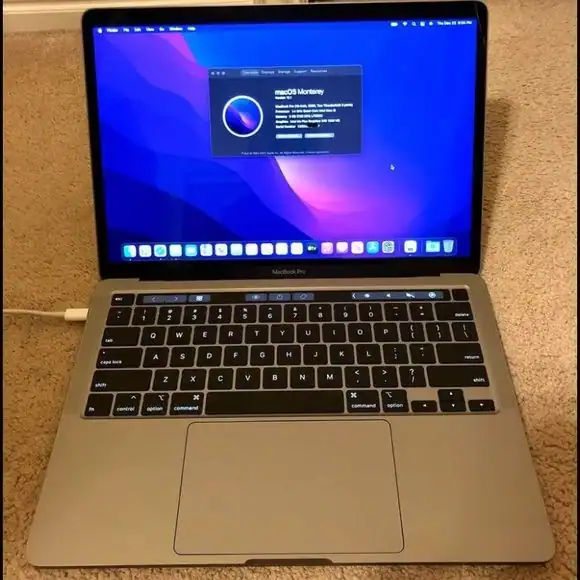
It’s the moment of panic every professional fears. You press the power button on your MacBook… and absolutely nothing happens. No startup chime. No fan spin. No Apple logo. Just a black, lifeless screen staring back at you. If you are currently frantically googling, “why won’t my macbook turn on?“, you are in exactly the right place.
In Johannesburg, where load-shedding surges and unstable grid power kill electronics daily, a dead laptop feels like an immediate financial disaster. You start calculating the cost of a new R30,000+ machine. But before you rush to the Apple Store, take a deep breath.
As component-level repair experts, we see “dead” MacBooks every single day. The good news? Roughly 30% of them aren’t actually broken—they are just stuck in a confused software sleep state or a deep discharge loop. A deep power cycle or a specific system reset might be all you need to get back to work in the next five minutes.
Whether you own a vintage MacBook Air or the absolute latest M3 MacBook Pro, the terrifying symptoms are often exactly the same. But the fixes vary wildly depending on your specific model year. This guide is your definitive resource for 2026, breaking down every troubleshooting step from basic charger checks to advanced firmware revives.
First: Why Is My MacBook Not Turning On?
Before we dive into the fixes, it helps to understand exactly *why* your MacBook is refusing to boot. When customers come into our shop and say, “my macbook won’t turn on and it was working perfectly last night,” we usually trace it back to one of these five culprits:
- The Grid Surge (Very Common in SA): When power is restored after a blackout, it often sends a massive voltage spike through the lines. If your Mac was plugged in, a tiny sacrificial capacitor on the logic board may have blown to protect the CPU.
- Deep Battery Discharge: If you left your Mac uncharged for weeks, the battery’s voltage drops below the threshold required to communicate with the charging IC chip. It essentially forgets how to charge.
- SMC / BridgeOS Crash: The system controllers handling power distribution can crash, leaving the computer stuck in an infinite “sleep” state, unable to wake up the screen or fans.
- Silent Liquid Damage: Spilled coffee a month ago? Liquid damage takes time. Corrosion slowly grows like rust on the logic board until it suddenly shorts a power rail.
- Display Failure (Fake Death): The computer *is* turning on, but the backlight behind the screen has failed, making it look 100% dead.
Now that we know the enemy, let’s start the diagnostic process. Try these steps in order before spending a single cent on repairs.
Check the “Power Path” (The Silent Killer)
It sounds incredibly obvious, but you’d be surprised how often a faulty charger or blocked port is the true culprit. Modern USB-C and MagSafe 3 ports are magnets for debris, and even a tiny, microscopic piece of lint can prevent the charging pins from making a proper handshake with the logic board.
The “Deep Discharge” Phenomenon
If your MacBook battery hit 0% and stayed there for a few days, it enters a deep discharge state. The battery voltage drops so low that the logic board’s CD3217 charging circuit doesn’t recognize it needs to open the gate for 20V power.
- Inspect the MagSafe/USB-C Port: Shine a flashlight inside. Is there lint, dust, or black carbon buildup on the pins? Use a non-conductive wooden toothpick to gently clean it. Never use a metal pin or paperclip.
- Swap the Block & Cable: Try a different power brick and cable. USB-C cables frequently fail internally without showing any outer physical damage. Ensure you are using a wattage appropriate for your Mac (e.g., don’t try to wake up a dead 16-inch Pro with a low-wattage iPad charger).
- The “Charge Wait”: Plug it in and verify the connection. If you have MagSafe, look for the amber or green light. Leave it strictly alone for at least 30 to 45 minutes. If the battery was critically low, the system needs to trickle-charge a baseline voltage before it will even attempt to power the screen on.
Perform a “Hard Power Cycle”
Sometimes the software crashes in a “deep sleep state” and refuses to wake up. The screen is black, the trackpad doesn’t click, but the logic board is actually stuck in an infinite processing loop. We need to force a complete hardware-level power cut to the processor to reset the cycle.
Action: Press and hold the Touch ID / Power button for a full, uninterrupted 10 seconds. It will feel like a long time. Count it out slowly. Do not let go early.
Once the 10 seconds are up, release the button. Wait 5 seconds for the onboard capacitors to discharge completely, then press the power button once normally to turn it on. Put your ear close to the keyboard and listen closely for any fan noise, subtle electrical whines, or trackpad clicks.
Reset the System Management Controller (SMC)
The SMC (System Management Controller) is a dedicated chip on Intel-based Macs that controls power flow, battery charging, thermal management (fans), and lid sensors. If the SMC data gets corrupted—often by a bad macOS update or an unstable charger—your Mac simply won’t turn on.
For T2 Security Chip Models (2018-2020 MacBook Air/Pro):
This is a specific “finger gymnastic” maneuver introduced by Apple. You must do it precisely to trigger the reset.
- Plug the power cable into the Mac.
- Hold Control (left side) + Option (left side) + Shift (right side) simultaneously for 7 seconds.
- While continuing to hold those three keys, press and hold the Power Button as well.
- Hold all 4 keys for another 7 seconds. If the Mac was on, it will turn off during this process.
- Release all keys, wait a moment, then press the Power button to turn the Mac on.
For Older Models (Non-Removable Battery, Pre-2018):
- Shut down the Mac (if you can). Plug in the MagSafe power adapter.
- On the built-in keyboard, press Shift + Control + Option (left side) and the Power Button simultaneously.
- Release all keys at the exact same time. The MagSafe light may flicker briefly from orange to green and back to orange. That flicker is the visual confirmation of a successful SMC reset!
- Press the power button to boot up.
Is it “Dead” or just “Dark”? (Backlight & Display Failure)
Often, the computer is actually turning on and booting into macOS perfectly fine, but the screen backlight has completely failed. This means the LCD is generating an image, but there is no light behind it to make that image visible to your eyes. This is extremely common in 2016-2018 MacBook Pros (the infamous “Flexgate” issue) and Macs that have suffered a drop.
Diagnostic 1: The Flashlight Test
Turn the Mac on and wait for the “chime” sound (if enabled) or wait about 30 seconds to give it time to boot. Shine a strong flashlight (like your iPhone torch) directly against the center of the black screen.
Look very closely at the spot where the light hits the glass. Can you see a faint, ghostly outline of your desktop wallpaper, the login screen profile picture, or a blinking cursor? If you see an image, your logic board and data are completely fine! Your computer is alive; it just needs a MacBook Screen Repair.
Diagnostic 2: The External Monitor Test
If the flashlight test yields nothing, plug your MacBook into an external monitor or TV using an HDMI cable or a USB-C hub. Close the lid of the MacBook to force it to use the external display. If your desktop appears on the TV, you know with 100% certainty that your Mac is functioning, and the issue is isolated strictly to the display assembly or display cables.
The DFU Revive (For Apple Silicon & T2 Macs)
Modern Macs act much more like iPhones than traditional computers. They rely on specialized firmware (bridgeOS) to manage the secure boot process. This firmware can crash or become corrupted during a macOS update, leaving the Mac totally unresponsive—a state often referred to as being “bricked.”
To fix a corrupted firmware state, you need a second, working Mac with the “Apple Configurator” app installed, and a high-quality USB-C to USB-C cable.
- Connect the two Macs via USB-C (ensure you use the master port, usually the one closest to the hinge).
- Put the dead Mac into DFU Mode (Device Firmware Update). The key combination varies slightly by model but usually involves holding power while pressing right-Shift, left-Option, and left-Control.
- On the working Mac, open Configurator. You should see a large “DFU” icon appear on the screen.
- Right-click the DFU icon and select “Revive Device”. This reinstalls the critical firmware *without* deleting your personal data.
- Critical Warning: Do not choose “Restore” unless you have an external backup! Selecting “Restore” will completely wipe the SSD and all your data.
*If you don’t have a second Mac, don’t want to risk data loss, or feel uncomfortable doing this, bring it to us. We perform safe DFU revives daily at our Johannesburg repair center.*
Still Dead? It’s Time for the Pros.
If you have tried the charger swap, the SMC reset, the flashlight test, and it is still completely unresponsive, you likely have a logic board-level hardware failure. Don’t panic; it is usually fixable. In our lab, the most common logic board hardware culprits we repair are:
Short Circuit (PPBUS_G3H)
A microscopic capacitor on the main power rail has failed (almost always due to power surges). The logic board’s safety system detects the short and permanently refuses to power on to prevent a fire. We locate the single bad capacitor and replace it via micro-soldering.
Catastrophic Battery Failure
Lithium-ion batteries have an internal BMS (Battery Management System). If the battery cells swell dangerously, the BMS cuts power permanently. The Mac won’t turn on even with the charger connected because the bad battery interrupts the power flow. Needs a safe battery replacement.
Liquid Damage Corrosion
Did you spill water on the keyboard months ago? Corrosion grows slowly over time. It eventually eats through a vital copper trace or a resistor, breaking the power circuit. This requires intensive logic board ultrasonic cleaning and trace rebuilding.
Charging IC Burnout
The CD3215/CD3217 chips negotiate high-voltage power with your wall charger. If one of these chips burns out from a cheap third-party charger, the Mac stays stuck at 5V (which is too low to boot the CPU). We extract and replace these dead chips.
Frequently Asked Questions
Why is my MacBook not turning on?
If your MacBook is not turning on, it is typically due to a completely drained battery in a “deep discharge” state, a crashed System Management Controller (SMC) that needs to be reset, a faulty USB-C charging cable/port, or a hardware failure on the logic board such as a blown capacitor caused by an electrical surge.
Why won’t my MacBook turn on but it is charging?
If your MacBook shows signs of charging (the MagSafe light is on, or a USB-C ampmeter shows a draw) but the screen stays black, it usually points to a corrupted SMC, a crashed firmware state (requiring a DFU revive), or a dead screen/backlight failure. The computer is likely “awake” internally, but cannot initialize the display.
Why is my MacBook screen black but the fan is running?
If you hear the fans spinning or feel the trackpad click, your logic board is working and supplying power. A black screen in this scenario almost always means the LCD panel itself is broken, the display flex cable is torn (Flexgate), or the backlight circuit on the motherboard has blown. Plug it into an external monitor to verify.
Will I lose my data if my MacBook won’t turn on?
In the vast majority of cases, no. A MacBook that refuses to turn on usually suffers from a power delivery issue (a bad battery, blown capacitor, or bad charging port). The NAND chips (your SSD storage) where your data lives are usually perfectly safe. By performing component-level logic board repair, we fix the power issue while leaving your original data completely untouched.
Why Choose Fix My Gadget for “Dead” Macs?
Many authorized repair shops will take one look at a dead computer and simply tell you, “The logic board is dead, you need to buy a new one for R15,000.” That is an expensive lie.
We specialize in component-level micro-soldering repair. We don’t just blindly swap expensive boards; we find the single R50 chip that caused the failure and replace it under a microscope. This methodology not only saves your critical business data (which is permanently soldered to the board on modern Macs) but also saves you thousands of Rands compared to factory replacement quotes.
-
✓
Free Initial Diagnostics: We will inspect the board and tell you exactly what is wrong. Our transparent “No Fix, No Fee” policy applies to standard logic board repairs.
-
✓
Strict Data Priority: Because we repair your original board rather than swapping it, your files, photos, and applications remain exactly as you left them.
-
✓
Fast Turnaround Times: We stock OEM-equivalent charging ICs, capacitors, and batteries locally to get you back online fast, rather than waiting weeks for parts to ship.
Don’t Guess. Get a Professional Diagnosis.
If your MacBook won’t turn on, bringing it to our lab is risk-free. We tell you exactly what is wrong and how much it costs to fix. If we can’t fix it, you don’t pay.
Fix My Gadget (Pty) Ltd. | Professional Apple Diagnostics in Johannesburg.