
Laptop Won’t Connect to WiFi? Here’s How to Fix It
A laptop that won’t connect to WiFi — or keeps dropping the connection — is one of the most frustrating everyday faults. The good news is that most cases are fixable in minutes once you know where to look. This guide works through the causes in order, from quick resets to genuine hardware faults.
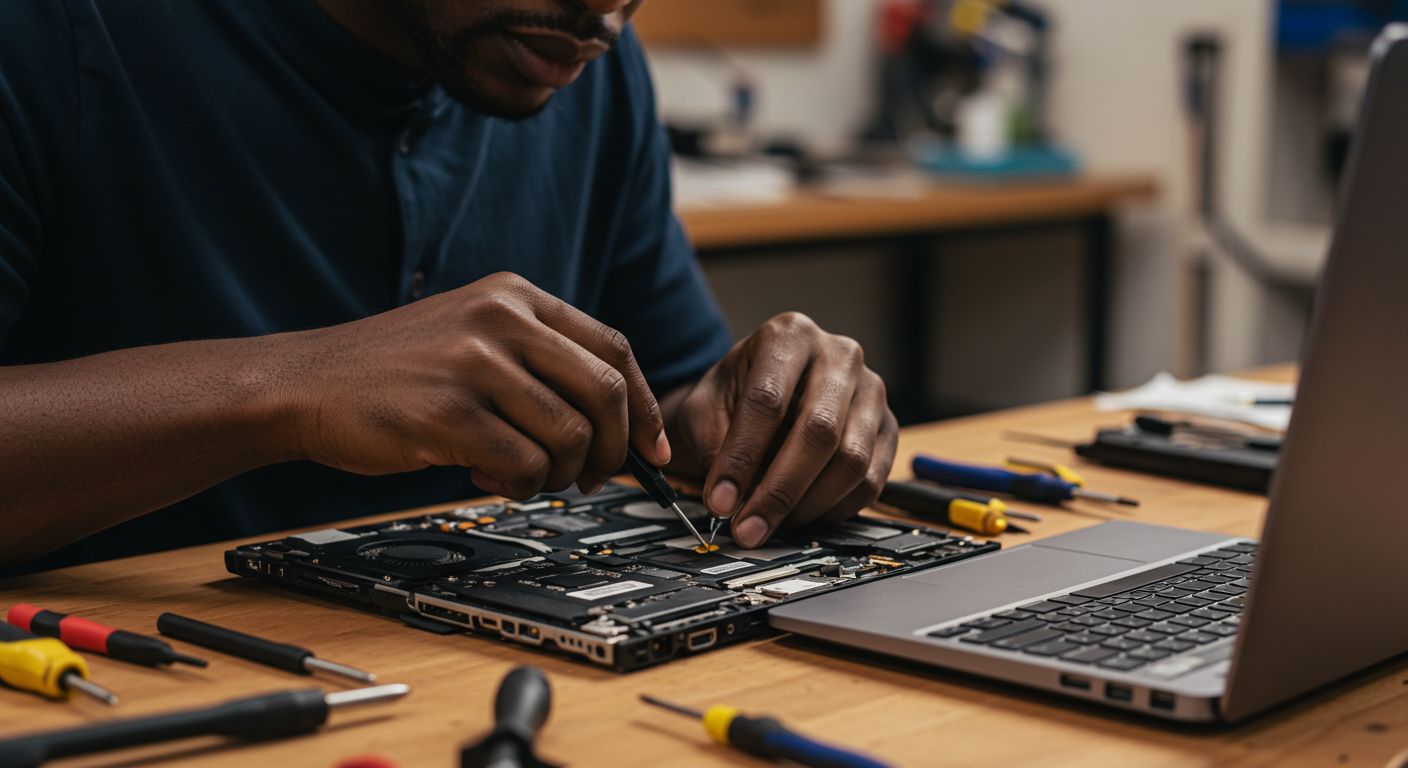
Before changing any settings, work out whether the problem is your laptop or the WiFi network itself. If other devices — your phone, another laptop, a smart TV — connect to the same WiFi without issue, the problem is your laptop. If nothing connects, the problem is your router or internet line, not the laptop.
A laptop that won’t connect to WiFi sends most people straight into a panic of clicking and restarting. But WiFi problems follow a predictable pattern, and working through the causes in the right order saves a lot of time and frustration. The vast majority of cases are software or settings issues that you can resolve yourself in a few minutes — only a small number turn out to be genuine hardware faults.
This guide is arranged in the order our technicians would work through the problem: simplest and most common fixes first, hardware diagnosis last. Do the quick check above before anything else — knowing whether it’s the laptop or the network immediately rules out half the possible causes.
📶 The 30-second test: Try connecting your phone to the same WiFi network. Phone connects fine but laptop won’t? The problem is your laptop — continue with this guide. Phone also can’t connect? The problem is your router or internet connection — restart the router and contact your internet provider if it persists.
Step 1: The Quick Resets That Fix Most Cases
Restart everything, in the right order
It’s the oldest advice in technology because it genuinely works. A huge share of WiFi connection problems are temporary glitches in either the laptop’s network software or the router — and a proper restart clears both. Do it in this order:
- Restart your laptop fully. Not sleep — a full shut down and power on. This clears temporary network glitches.
- Restart your router. Unplug it from power, wait 30 seconds, plug it back in, and give it 2 minutes to fully start up. Routers run for months without a restart and develop glitches.
- Toggle WiFi off and on on the laptop, or use Airplane Mode — switch it on for 10 seconds, then off again. This forces the WiFi to reconnect cleanly.
Test the connection after each step. If a simple restart sequence fixes it, you’re done — no need to go further.
Step 2: Confirm WiFi Is Actually Switched On
Check the WiFi switch, key and Airplane Mode
This sounds too obvious to mention, but it’s one of the most common causes we see — WiFi has been accidentally switched off. Laptops have several ways to disable WiFi, and any of them can be triggered by accident:
- The physical WiFi switch. Some laptops have a physical slider switch on the side or front edge. Check it hasn’t been knocked to “off”.
- The WiFi function key. Most laptops have a function key (often F2, F3, or a key with an antenna/aeroplane symbol) that toggles WiFi. It may need to be pressed with the Fn key. It’s easy to hit by accident.
- Airplane Mode. If Airplane Mode is on, WiFi is disabled. Check the system tray (bottom right on Windows) and turn Airplane Mode off.
- WiFi disabled in settings. On Windows, click the network icon in the system tray and confirm the WiFi tile is on (highlighted), not greyed out.
If WiFi was simply switched off, turning it back on resolves everything instantly. Always check this before assuming a deeper fault.
Step 3: Forget the Network and Reconnect
For “can’t connect to this network” or wrong-password errors
If your laptop sees the WiFi network but won’t connect — or gives a “can’t connect to this network” error — the saved network profile may be corrupted or holding an old password. Forgetting the network and reconnecting fresh often fixes this.
On Windows:
- Go to Settings → Network & Internet → WiFi → Manage known networks.
- Click your network and select “Forget”.
- Click the WiFi icon in the system tray, select your network again, and enter the password fresh.
This is particularly effective if your WiFi password was recently changed, or if the laptop connects everywhere else but not on one specific network.
Step 4: Reset the Network Adapter and Settings
Clear out corrupted network configuration
If the connection still fails, the laptop’s network configuration may be corrupted. Windows has built-in tools to reset it. First, try the automatic troubleshooter:
- Right-click the network icon in the system tray → “Troubleshoot problems” (or Settings → Network & Internet → Status → Network troubleshooter).
- Let it run — it can detect and fix many common issues automatically.
If that doesn’t work, a network reset clears all network adapters and settings back to default:
- Go to Settings → Network & Internet → Advanced network settings → Network reset.
- Click “Reset now” and restart the laptop.
- After restart, reconnect to your WiFi with the password.
⚠️ A network reset removes all saved WiFi networks and passwords, so you’ll need to reconnect to each one again afterward. It’s safe — it just clears network settings — but have your WiFi password handy before you do it.
Step 5: Update or Reinstall the WiFi Driver
For WiFi that stopped after an update, or keeps dropping
The WiFi driver is the software that lets Windows talk to your laptop’s wireless hardware. A corrupted, outdated, or incompatible driver is a very common cause of WiFi problems — especially when WiFi stops working right after a Windows update, or when the connection keeps dropping repeatedly.
To reinstall the driver:
- Right-click the Start button → Device Manager.
- Expand “Network adapters” and find your wireless adapter (usually has “Wireless”, “WiFi”, or “802.11” in the name).
- Right-click it → “Uninstall device”. Confirm.
- Restart the laptop — Windows automatically reinstalls a fresh copy of the driver on reboot.
To update the driver instead, right-click the adapter → “Update driver” → “Search automatically”. If WiFi is completely down and you can’t get online to download a driver, you may need to use a phone’s USB tethering or an ethernet cable temporarily to get the laptop online for the update.
💡 Driver issues are one of the most frequent causes of “WiFi keeps dropping” on Windows laptops. If your connection works but disconnects repeatedly, reinstalling the WiFi driver is often the fix. Persistent dropping after a clean driver reinstall points toward a hardware issue (Step 6).
Step 6: Rule Out a Hardware Fault
When the WiFi card or antenna has failed
If you’ve worked through every step above and the laptop still won’t connect — while other devices connect to the same network without issue — the cause may be a hardware fault in the laptop’s WiFi card or antenna. Common signs of a hardware WiFi problem include:
- WiFi disappeared entirely — no wireless adapter shows in Device Manager at all.
- Extremely weak signal even when sitting next to the router, while other devices show full signal.
- WiFi worked until the laptop was dropped, opened for a repair, or had liquid spilled on it.
- The connection drops constantly no matter what you try, including after a full driver reinstall and network reset.
The WiFi card is a small component inside the laptop, and the antenna wires run up into the screen bezel. Either can fail with age, after physical damage, or after a repair where the antenna cable wasn’t reconnected properly. A failed WiFi card can usually be replaced affordably — and in some cases a USB WiFi adapter is a quick, cheap workaround. A technician can diagnose which it is, and if you’re local you can find us via our laptop repair near me in Johannesburg South page.
💡 If your laptop is also showing other problems alongside the WiFi fault — running slowly, overheating, or behaving strangely — it’s worth a full diagnostic. Our guides on speeding up a slow computer and our laptop repair service cover the broader picture.
Could It Be Malware?
Occasionally, WiFi and internet problems are caused not by hardware or drivers but by malware. Certain malicious programs interfere with network settings, hijack DNS, or block connectivity entirely. Signs that point toward this include: the WiFi connects but no websites load, your browser redirects to strange pages, you see unexpected pop-ups, or the problems started after installing a suspicious program or file.
If you suspect this, our guide on how to remove computer viruses and malware walks through the steps. A laptop that connects to WiFi but can’t actually browse is more likely a malware or DNS issue than a wireless hardware fault.
Quick Diagnosis: Match Your Symptom to the Fix
Use this table to jump straight to the most likely cause based on exactly what your laptop is doing.
Still Can’t Connect to WiFi?
If you’ve tried everything and your laptop still won’t connect, bring it to Fix My Gadget for a Diagnosis. We’ll find the cause and quote the fix before any work begins — with pickup and delivery across Johannesburg.