
Laptop Overheating? Here’s What’s Actually Wrong — and How to Fix It
Fan screaming, laptop shutting down, hot to touch? These are warning signs of real hardware damage in progress. Here’s what’s causing it and what to do before it gets worse.
A laptop that overheats is not just uncomfortable to use — it’s actively destroying its own hardware. Every hour a CPU or GPU runs at excessive temperatures accelerates wear on solder joints, capacitors, and the processor itself. What starts as a noisy fan becomes throttling, then shutdowns, then permanent hardware failure.
At Fix My Gadget we fix overheating laptops daily at our Kibler Park workshop. This guide explains exactly what’s happening, what you can do yourself, and when you need a professional fix.
🚨 If your laptop is shutting down from heat right now: Stop using it. Let it cool completely before turning it back on. Continued use at high temperatures risks permanent CPU or GPU damage that no repair can fix.
Warning Signs Your Laptop is Overheating
Overheating rarely announces itself dramatically. It usually develops gradually — these are the signs to watch for:
💨 Fan running constantly at full speed
Fan that never slows down even during light tasks means the cooling system is struggling to keep up. Normal laptops throttle fan speed at idle.
🐌 Laptop suddenly gets very slow
Thermal throttling — the CPU reduces speed to generate less heat. You’ll notice sudden sluggishness mid-task. This is the laptop protecting itself.
⚡ Random shutdowns
Laptop powers off without warning during use. A built-in thermal protection shuts the system down before the CPU overheats beyond recovery.
🔥 Hot bottom / keyboard area
Some warmth is normal — burning hot to touch is not. If you can’t rest your hands on the keyboard comfortably, temperatures are dangerously high.
📺 Screen flickering or artifacts
GPU overheating can cause visual glitches — lines on screen, colour corruption, or screen flickering. Often misdiagnosed as a screen fault.
🔔 Error messages about temperature
Some laptops display BIOS or Windows warnings about high CPU temperatures. Never ignore these — they’re the last warning before hardware damage.
Why Is My Laptop Overheating? — The Real Causes
Most overheating articles tell you to buy a cooling pad and call it a day. That doesn’t fix anything. Here are the actual causes we see every day at our workshop:
Dried Out Thermal Paste
Thermal paste is the compound between the CPU/GPU and the heat sink. After 2–4 years it dries out and cracks — losing its ability to transfer heat. This is the most common cause of overheating in laptops over 3 years old.
Most CommonClogged Dust & Lint
Dust builds up in the cooling vents and on the fan over time, blocking airflow. Johannesburg’s dry climate and dusty conditions accelerate this significantly. Laptops on carpet or fabric surfaces clog faster.
Very CommonFailed or Worn Fan
Laptop fans have a limited lifespan. A fan that’s running but not spinning at full speed, making grinding noises, or intermittently stopping is not cooling the laptop properly even if the vents are clear.
CommonSoftware / Background Processes
Malware, runaway browser tabs, crypto mining scripts, or poorly optimised software can push CPU usage to 100% constantly — generating heat that the cooling system can’t handle even when working perfectly.
CommonJohannesburg Climate & Summer Heat
Johannesburg summer temperatures regularly exceed 35°C. A laptop cooling system designed for 25°C ambient temperature struggles significantly at 35°C+. Hot rooms, direct sunlight, and load-shedding with no air conditioning all contribute.
SeasonalBlocked Vents During Use
Using a laptop on a bed, pillow, or couch blocks the bottom vents completely. The cooling system needs clear airflow underneath. This accelerates all other overheating causes.
PreventableWhat You Can Do Yourself — Free Fixes First
Before paying for a professional repair, try these free steps. If the problem persists after these, it almost certainly needs a professional clean and thermal paste replacement.
Check Task Manager
Press Ctrl + Shift + Esc → Processes tab. Sort by CPU %. If anything is using 50%+ at idle — close it. Check for antivirus scans, Windows Update, or browser tabs with video.
Check Power Plan
Windows Settings → Power → set to Balanced or Power Saver. High Performance mode generates significantly more heat for minimal real-world benefit in daily use.
Use on a Hard Flat Surface
Move off the bed or couch onto a table. Elevate the back slightly with a book if possible — this improves airflow under the laptop immediately.
Blow Out the Vents
Short bursts of compressed air into the vents can dislodge surface dust. Don’t use a vacuum — the static can damage components. Compressed air only, short bursts.
Update Drivers & BIOS
Outdated BIOS and drivers can cause improper fan control. Check the manufacturer’s support page for your laptop model and install any available updates.
Run a Malware Scan
Malware and crypto miners cause constant high CPU usage. Run Windows Defender full scan or Malwarebytes free version. Persistent high CPU at idle is a strong malware indicator.
⚠️ If the above doesn’t fix it: The problem is almost certainly hardware — dried thermal paste, clogged heatsink, or a failing fan. These require opening the laptop and cannot be fixed from outside. Bring it to us for a free diagnostic before the heat causes permanent damage.
When You Need a Professional Laptop Overheating Repair
If the DIY steps above haven’t resolved the overheating, your laptop needs to be opened up. The most common professional repairs for overheating are:
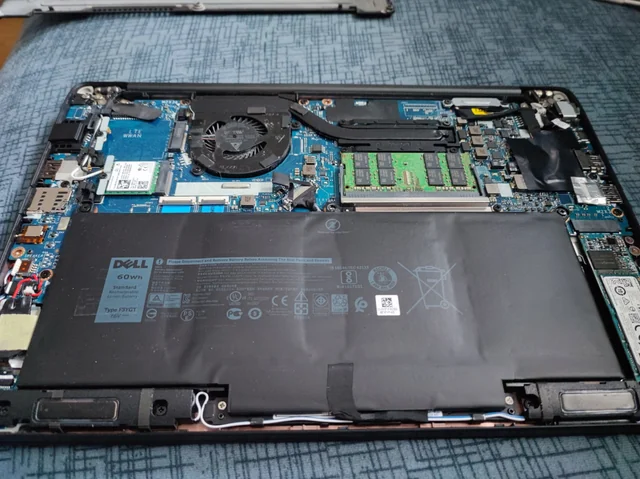
- Deep internal clean — full disassembly, compressed air and brush cleaning of the heatsink, fan, and all vents. This alone fixes most overheating issues in older laptops.
- Thermal paste replacement — old dried paste removed, quality new compound applied correctly. The difference in temperatures after a proper repaste is typically 15–25°C.
- Fan replacement — a fan that’s worn, grinding, or intermittently failing needs replacement, not just cleaning.
- Heatsink inspection — occasionally the heatsink itself warps or the copper pipes fail. Rare but requires replacement.
🔧 Free diagnostic at Fix My Gadget: We assess your laptop’s temperatures and cooling system at no cost before quoting. You’ll know the exact cause before we start any repair.
Overheating Repair Costs in Johannesburg 2026
| Repair Service | What It Addresses | Price From | Turnaround |
|---|---|---|---|
| Free Diagnostic | Temperature test, identify exact cause | R0 — Free | Same visit |
| Internal Clean + Thermal Paste | Full disassembly, dust removal, new thermal compound | From R700 | 1 day |
| Fan Replacement | Worn or failing cooling fan replaced | From R900 | 1–2 days |
| Full Thermal Overhaul | Clean + thermal paste + fan + heatsink inspection | From R1,200 | 1–2 days |
| MacBook Thermal Service | MacBook Air / Pro thermal paste + clean | From R900 | 1–2 days |
| Malware Removal | Removes software causing constant CPU overload | From R600 | 1 day |
All repairs include 3-month warranty. Pickup & delivery available across Johannesburg. Final price confirmed after free diagnostic.
What Our Customers Say
Real reviews — see all 31 Google reviews →
“Really efficient and honest. And quality work was done in the shortest amount of time possible.”
“Fix My Gadget are efficient, trustworthy and fair priced. They kept me informed throughout the whole process.”
“Super impressed with the turn around time. My laptop was repaired in less than 24 hours. Thank you so much Steven for your service.”
Frequently Asked Questions
Laptop Overheating in Johannesburg? We Fix It Properly.
Free diagnostic, honest quote, 3-month warranty. Pickup & delivery across all of Johannesburg from our Kibler Park workshop.