
Desktop PC repair Johannesburg
Desktop PC Won’t Turn On? Power Supply Repair in Johannesburg
When a desktop computer is completely dead, keeps clicking, starts for one second, or shows no display after pressing the power button, the mistake is to guess. The right repair begins by separating the power supply, motherboard, RAM, SSD and Windows boot path before money is spent on the wrong part.
Quick answer
What usually causes a desktop computer not to turn on?
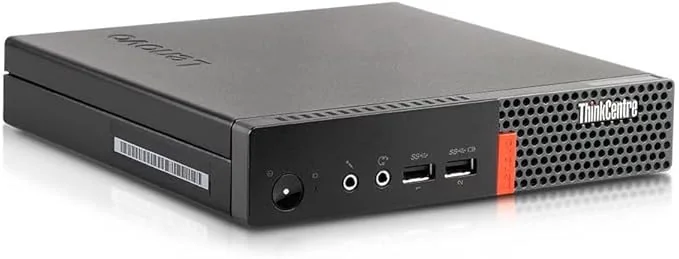
A desktop PC that will not turn on can look simple from the outside, but the fault can sit in several places. The power supply unit can fail. The motherboard can have a short. The front power button can stop sending the start signal. A graphics card can pull too much power. RAM can prevent booting. A storage drive can fail and make the computer appear stuck. In business environments, the cause can also be dust, heat, unstable power, repeated load-shedding events, or old hardware that has been running every day for years.
The best repair path is not to buy a power supply immediately. The best path is to test safely, confirm the symptom, protect the data, and only then decide if the machine needs a power supply replacement, motherboard repair, SSD replacement, RAM reseating, Windows repair, or full replacement with a better refurbished machine.
Fix My Gadget helps Johannesburg customers make that decision clearly. We do not want you to spend money blindly. We want to find out whether the computer is worth repairing, whether the files can be protected, and whether an upgrade would give the machine a second life.
Symptoms
Different no-power symptoms point to different repairs
Two customers can both say, “my computer will not turn on,” but their machines can be failing in completely different ways. A PC that is silent is different from a PC that clicks. A PC that powers for one second is different from a PC that spins fans but gives no display. A PC that reaches Windows and then crashes is not the same as a dead motherboard.
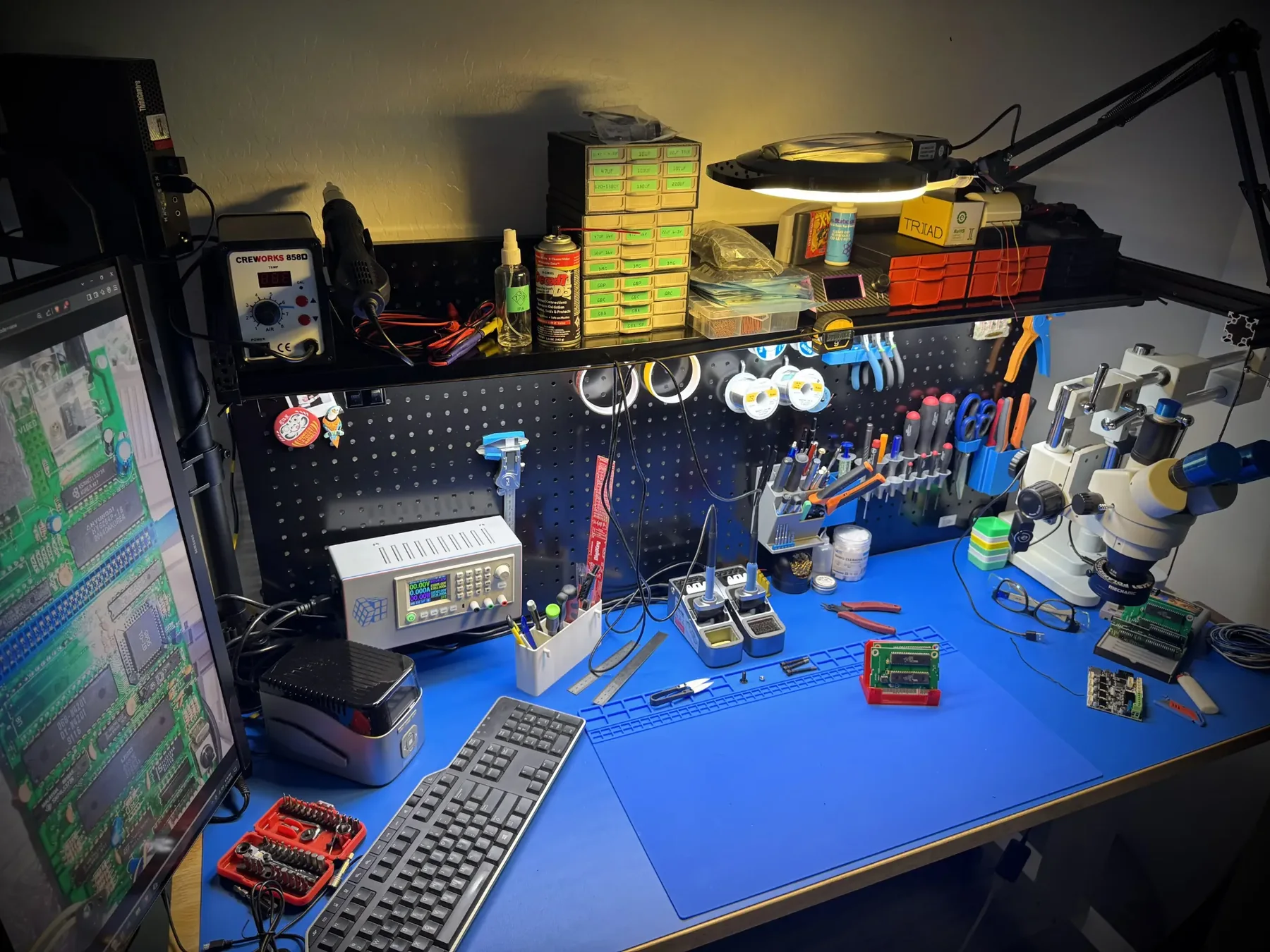
When you describe the symptom properly, the repair route becomes clearer. Send us a short video showing what happens when you press the power button. Show the rear power cable, the front power light, any fan movement, and any beeps or lights on the motherboard. This helps us decide whether to start with the power supply, the motherboard, the graphics card, RAM, storage, or Windows.
Diagnosis table
What the symptom can mean
This table is a practical starting point. It is not a final diagnosis, but it helps you avoid the most common mistake: replacing parts before knowing what failed.
| Symptom | Possible cause | Safe next step |
|---|---|---|
| Completely silent, no fan, no lights | Power cable, PSU, front switch, motherboard power circuit | Check the wall plug and cable, then stop guessing and test the PSU. |
| Clicking sound or one-second power | Shorted component, overloaded PSU, motherboard protection shutdown | Disconnect power and avoid repeated attempts. |
| Fans spin but no display | RAM, GPU, monitor cable, motherboard, BIOS or storage boot issue | Test display path, RAM seating and graphics output. |
| Turns on but freezes at logo | SSD/HDD fault, Windows corruption, BIOS boot issue | Protect files first, then test storage health. |
| Burnt smell or visible dust build-up | PSU stress, heat, board short, fan failure | Stop using the machine and book inspection. |
Safety first
Do not open the power supply unit at home
A desktop power supply is not the same as a laptop charger. It can hold dangerous electrical charge even after the computer is unplugged. Customers should not open the PSU casing, poke inside it, bridge wires, or test it with improvised tools. Safe diagnosis means checking the outside connections, cable, power switch, obvious dust and visible damage, then allowing a technician to test the internal power path with proper equipment.
If the computer had a burning smell, sparks, smoke, liquid exposure, or repeated immediate shutdowns, switch it off and disconnect the power cable. Continuing to press the power button can turn one repairable fault into a motherboard, storage or graphics-card failure.
This is especially important for business desktops and mini PCs. A small power fault can become downtime, lost work and rushed replacement costs. The earlier the fault is assessed, the easier it is to choose repair, upgrade or replacement calmly.
Business machines
Office PCs, mini desktops and server-style machines need a different mindset
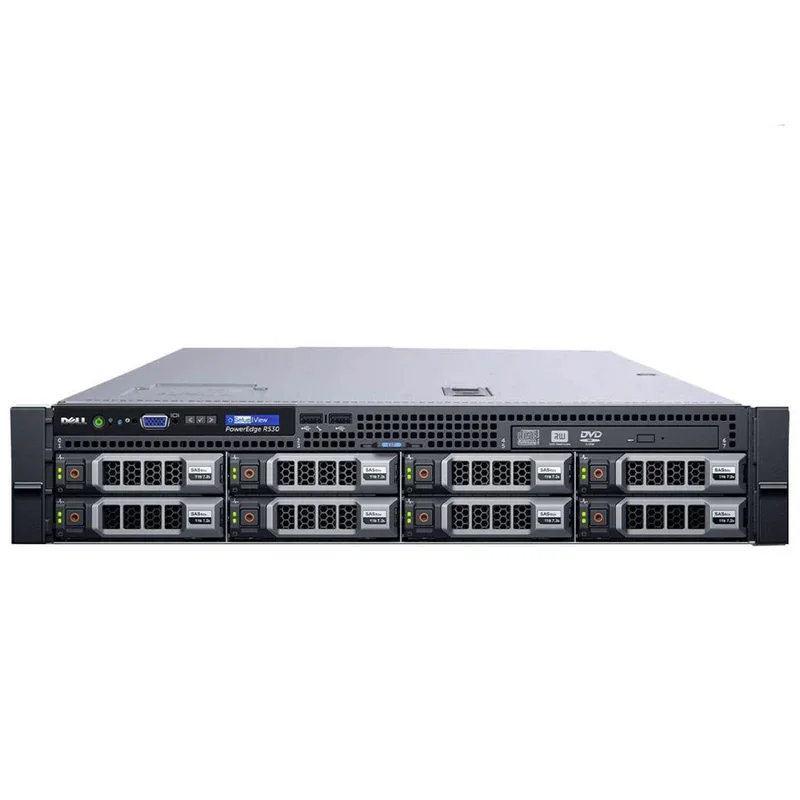
A home desktop is often judged by repair cost alone. A business machine must also be judged by downtime, data access, accounting software, email, shared files and staff productivity. If an office PC or small server suddenly stops powering on, the repair plan should include the data and the business workflow, not just the part.
For business customers, Fix My Gadget can inspect the machine, advise whether the storage should be cloned, whether the SSD is still healthy, whether the PSU is the only problem, and whether a replacement or refurbished desktop is more sensible than repairing an old platform. Sometimes the correct answer is a power supply. Sometimes it is an SSD migration. Sometimes it is replacing the machine and preserving the data.
This is why the first question is not “how much is a power supply?” The first question is “what must be protected, and what is the most economical way to get you working again?”
Repair, upgrade or replace?
How to decide whether the desktop is worth repairing
A desktop that will not turn on is not automatically finished. Many machines become useful again after the correct power or storage repair. But there are cases where replacement is the better business decision.
Data protection
Protect the files before repeated power attempts
When a computer will not start, the files may still be safe on the SSD or hard drive. The danger comes when customers keep forcing power, swapping random parts, or reinstalling Windows before checking the drive. If the files matter, say so before any repair begins. That changes the order of work.
We may recommend checking the storage drive first, cloning the drive, backing up important folders, or moving the drive to another machine for inspection. If the drive is clicking or unreadable, it must be treated as a data-recovery issue rather than a normal repair. The goal is to avoid turning a repair job into a data-loss problem.
For Windows machines, boot problems can also imitate hardware faults. A PC may have power and display, but still fail to load Windows because of corrupted system files, a failed SSD, a damaged boot partition or a bad update. That is why diagnosis must separate power, display, storage and operating system behaviour.
Shop and service connection
Parts and upgrades that often come after diagnosis
The Fix My Gadget shop supports the repair journey. Do not buy blindly. Confirm your model, the symptom and the part type first, then choose repair, upgrade or replacement.
What to send on WhatsApp
Send the right information and the quote becomes easier
- Short videoShow what happens when you press the power button.
- Back of the computerShow the power cable, ports and any lights at the rear.
- Computer model or photoShow the brand, model sticker or case type if visible.
- Important filesTell us if the data is more important than the machine itself.
- Recent eventsMention load-shedding, power surge, liquid, dust, new parts or failed updates.
FAQ
Desktop PC power repair questions
No. A dead desktop can be caused by the PSU, motherboard, front switch, RAM, storage, graphics card or a shorted component.
Basic external checks are fine, but do not open the power supply. It can hold dangerous charge and should be tested with proper tools.
Yes. We can help you compare repair, SSD/RAM upgrade, refurbished replacement and safe data recovery options.
The diagnostic is R400 and is waived when the approved repair proceeds. Pickup and delivery are paid and quoted upfront.
Final advice
Repair the cause, not only the symptom
A desktop computer that will not turn on can be frightening because it feels final. But many no-power computers are not dead; they are stuck at one part of the power, display, storage or boot chain. The important thing is to avoid panic buying. Do not buy a PSU because someone guessed. Do not reinstall Windows before checking the drive. Do not assume the motherboard is dead before the power path is tested.
Good repair is a decision process. It protects your files, tests the power path safely, checks whether the machine is still worth saving, and explains the quote before the work starts. That is the kind of repair path Fix My Gadget is building for Johannesburg customers.
If your desktop, mini PC or business computer will not turn on, send the symptom, photos and model on WhatsApp. We will help you decide whether the smart move is repair, upgrade, data protection or replacement.
Visit or arrange pickup
Fix My Gadget is based in Kibler Park, Johannesburg South
Workshop drop-off is available by arrangement, and paid pickup/delivery can be quoted upfront for Johannesburg areas. Send your device model, fault photos and your area on WhatsApp before coming through.
Need desktop PC repair advice?
Send a short video before buying parts.
We will help you decide whether the fault looks like power supply, motherboard, storage, graphics, Windows or upgrade work.